Schools
School is a master feature that represents the organization (primary, secondary, or other learning institution) that receives tablets, accessories, and other educational equipment from Imagine Worldwide.
Each school is recorded once in the system, and then linked whenever distributions are made.
Prerequisites
Before creating a School, the following must already exist:
- Company
- Implementation Service Partner (ISP)
- Cohort
- Territory / Region
- Research Type
- Country Template
- Warehouse Type
- Main School
- In Use
- School Returns
- (These are pre-configured during data migration)
How to Create a School in ERPNext
- Go to the Imagine Worldwide module on the left sidebar.
- Select School from the list of doctypes.
- Click Add New School and complete the following fields:
- School Name – Official name of the school.
- ISP – Implementation Service Partner responsible for the school or region.
- Cohort – Grouping for rollout or research purposes, e.g. Cohort 1, Cohort 2.
- EMIS Number – Ministry of Education’s official identifier number.
- IWON ID – ID for monitoring and evaluation.
- Research – Indicate whether the school is part of any research program.
- Area Type – Type of area the school is located in (Rural or Urban).
- If Rural, Specify – Additional details if Area Type is Rural (e.g. remote, semi-urban).
- Accessibility During Rainy Season – Whether the school is accessible in the rainy season.
- Company – The company managing the project (e.g. Imagine Malawi).
- Country – The country the school belongs to (auto-populated from the selected company).
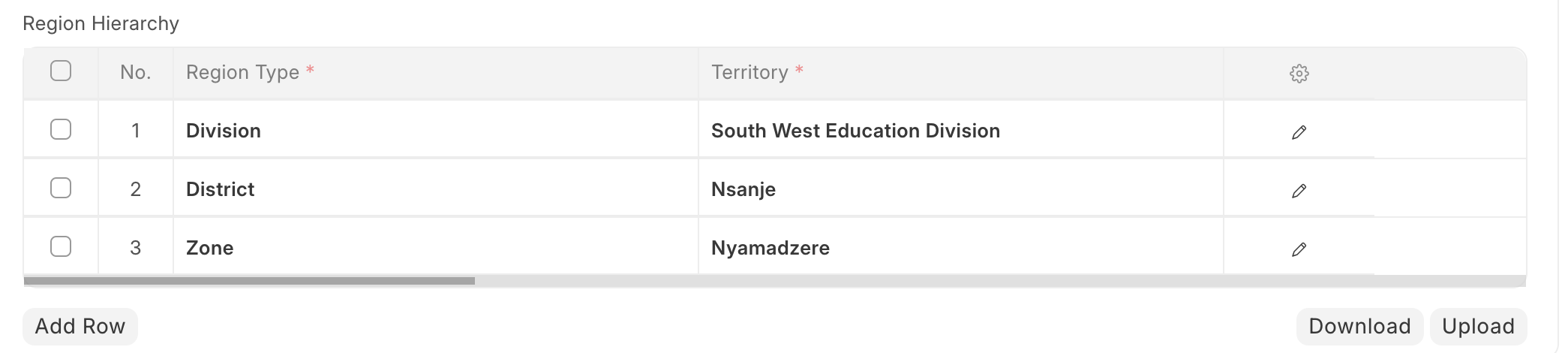
- Region Hierarchy – Administrative region breakdown based on the country’s structure.
- This will auto-populate from the Country Template.
- Complete the Territory corresponding to the Region Type.
Example: Region Hierarchy
Warehouses Created Automatically
Once a School record is approved, the system will automatically create and link three warehouses to that School. These ensure all stock movements to and from the School are tracked correctly:
- Parent Warehouse
- Named as School Name + EMIS Number (for uniqueness).
- Defined as a Group Warehouse.
- Linked to the School Warehouse Type.
- In Use Warehouse
- The operational warehouse where all distributions to the school are tracked.
- Linked to the In Use Warehouse Type.
- Returns Warehouse
- For all returns from the school (e.g., broken or collected items).
- Linked to the School Returns Warehouse Type.